Animate Photo for Fast Cinematic Creation
Create polished clips with Animate Photo workflows, flexible models, and fast export controls built for portraits, product images, old photos, social content, and cinematic still-to-motion scenes.
Duration
Resolution
Ratio
Quality
Must be publicly accessible http(s) URL; data URLs are not supported by the generator.
Preview video
Amazing Features
What makes this Animate Photo page useful
The page is built around Animate Photo creation, but it also covers the practical details users care about: source-photo quality, motion direction, model choice, output control, and a preview-first Animate Photo workflow.
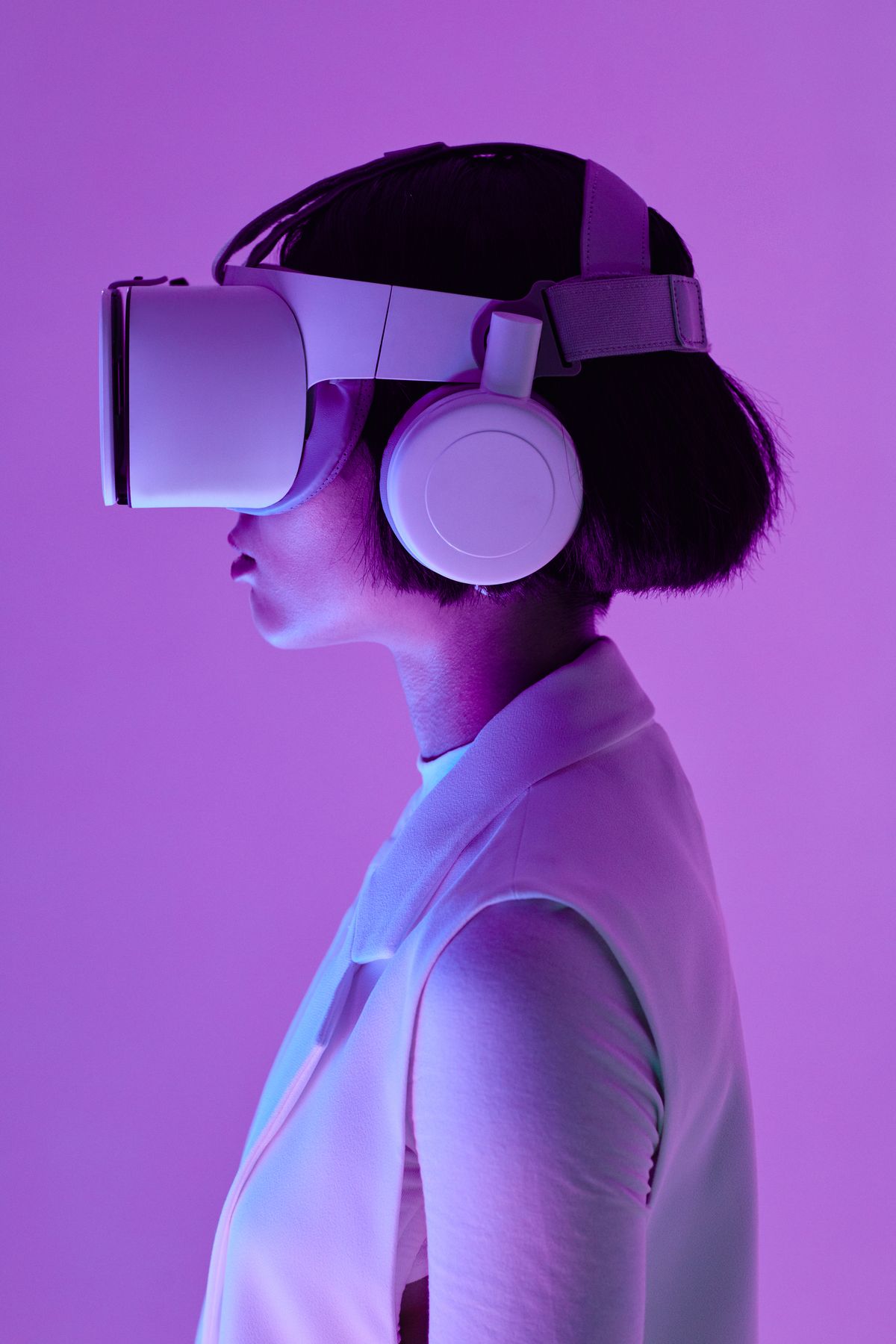
Animate Photo from still frames
Animate Photo works best when you already have a still picture that deserves motion. Start from a portrait, product image, poster frame, memory photo, or hero visual, then use Animate Photo direction to add camera drift, depth, expression, and atmosphere.

Animate Photo with brand-safe control
Animate Photo is ideal when the source picture already contains the look you want to preserve. Instead of rebuilding the frame from scratch, you animate the photo directly, which is especially useful for campaigns, presentations, product stills, and visual storytelling.

Animate Photo model switching
Different pictures need different motion behavior. Sora-2.run lets you test Animate Photo across Sora 2, Veo 3, and Runway while keeping the same photo, movement prompt, preview panel, and output controls visible, which makes Animate Photo comparison much easier in practice.

Animate Photo output controls
Strong Animate Photo output is not just about motion quality. It also needs the right crop, duration, and resolution for the place it will appear, whether that is a social ad, landing page, memorial clip, launch header, or internal presentation.
Models
Compare the Animate Photo model paths
Each Animate Photo model behaves differently. Use this comparison to choose the right balance of pace, motion feel, resolution, and clip length for your Animate Photo use case.
| Model | Text to Video | Image to Video | Multi-shot | Native Audio | Input | Max Resolution | Clip Length |
|---|---|---|---|---|---|---|---|
| Sora 2 | Yes | Yes | Basic | No | Image + prompt | 1080p | 5s |
| Seedance 2 | Yes | Yes | First/last frame | Yes | Image + prompt | 1080p | 4-12s |
| Veo 3 | Yes | Yes | Workflow-based | Limited | Image + prompt | 1080p+ | 8s |
| Runway 5s | Yes | Yes | Clip-based | No | Image + prompt | 720p-1080p | 5s |
| Runway 8s | Yes | Yes | Clip-based | No | Image + prompt | 720p-1080p | 8s |
| Runway 10s | Yes | Yes | Clip-based | No | Image + prompt | 720p-1080p | 10s |
Animate Photo for iteration speed
The value of Animate Photo is not just animation. It is leverage. Teams already own large libraries of approved still assets, and Animate Photo turns those still assets into usable motion much faster than a traditional post-production pipeline.
Animate Photo for direct comparison
A serious Animate Photo workflow should keep photo input, movement prompting, previewing, model switching, and exporting together. That setup makes Animate Photo testing cleaner and more useful than bouncing between separate tools.
Animate Photo for teams
Animate Photo is often framed as a creator feature, but it is equally useful for brand teams, agencies, ecommerce operators, and internal marketers who need presentation-ready motion from existing assets.
Animate Photo for commercial intent
Searches for Animate Photo usually come from users who want a live tool they can try immediately. This page brings the Animate Photo workspace to the top while still explaining the workflow, use cases, and model choices clearly enough for commercial evaluation.
Effects & Templates
Prompt ideas that pair well with Animate Photo
Animate Photo Portrait Motion
Animate Photo Product Spin
Animate Photo Beauty Clip
Animate Photo Poster Reveal
Animate Photo Old Memory Effect
Animate Photo Food Motion
A simple Animate Photo workflow
Upload a source photo for Animate Photo
Begin with the picture you want to animate. Animate Photo works best when the source photo is clear, well composed, and already close to the final visual language you want, whether it is a portrait, product photo, old family image, key art frame, or branded shot.
Set Animate Photo motion controls
Add a movement prompt, then choose the model, ratio, duration, and quality based on where the Animate Photo result will be used. A memorial clip, product demo, homepage loop, and vertical ad all need different framing, pacing, and motion intensity.
Generate and refine Animate Photo clips
Generate the clip, study how the photo was animated, and adjust the movement language until the Animate Photo result feels deliberate. Small prompt changes around camera push, parallax, facial expression, depth, or atmosphere can noticeably improve the final clip.

Use Cases
Still-image motion for brands, creators, and fast campaign work
Where Animate Photo fits best
- Animate Photo for product clipsAnimate Photo is highly effective for ecommerce, beauty, fashion, consumer electronics, and SaaS teams that want to turn a static product frame into premium motion without booking a full shoot.
- Animate Photo for paid-social creativeAnimate Photo helps teams turn one approved still into multiple ad-ready motion variations for TikTok, Reels, Shorts, and broader paid-social campaigns without rebuilding the creative from zero.
- Animate Photo for homepage loopsUse Animate Photo to transform a polished still visual into homepage loops, hero banners, and launch-page motion that feels more alive while preserving the original visual identity.
- Animate Photo for concept proofingAnimate Photo is a practical way to test motion direction, scene energy, and presentation style before committing a bigger budget to editing, filming, or full campaign production.
Animate Photo FAQ
Animate Photo turns a still photo into a motion clip. Instead of starting from a blank prompt-only workflow, you begin with an existing picture and use Animate Photo prompting to control movement, pace, camera feel, and atmosphere.